Restyle videos, animate characters from motion references and create talking images with DomoAI’s generation and enhancement tools.
AI Animation ToolsFreemium
An audio and video editor with transcript-driven cuts, remote recording, Underlord, speech cleanup, clips, captions, and layouts.
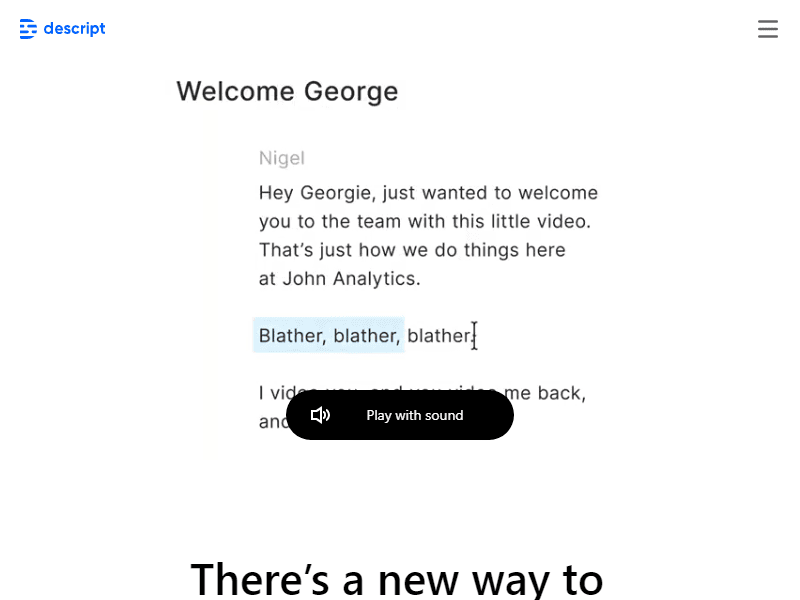
Descript is an audio and video production workspace built around editing spoken material through a transcript. Import or record a conversation, lesson, demonstration, or podcast, then work with the words and the media together. It also provides a visual editor, remote recording, captions, speech cleanup, AI speech, clip creation, and an editing assistant called Underlord.
The central advantage is a familiar way to find and change a spoken passage. A podcast producer can locate an answer by reading it; a support team can shorten a walkthrough without searching every minute of footage; a marketer can develop short clips from a longer interview. Descript still requires decisions about meaning, timing, picture composition, and the final soundtrack. Its text interface changes how you make an edit, rather than deciding every edit for you.
Descript's document-style editing connects transcript words to the recorded audio and video. Deleting a word removes the corresponding media. Ignore keeps crossed-out text visible while excluding it from playback, and transcript correction changes inaccurate spelling or speaker information. Correcting what the transcript says is different from generating new speech.
That distinction matters when a recognition error appears. If a speaker said a product name correctly but the transcript spelled it incorrectly, correct the text. If the speaker actually said the wrong name, the source audio still contains the mistake and needs an editorial decision or a supported speech-repair workflow. Reading the transcript makes the issue easy to find, but listening determines which kind of change is necessary.
For an interview, identify the answer you want to keep, then preserve enough of the question for the answer to make sense. Remove repetition without removing a condition attached to the statement. After a text edit, listen across the join and watch the picture. A sentence can read smoothly while an abrupt breath or a visible jump still reveals where the cut occurred.
Descript combines the script with video layouts, scenes, media, titles, and supported templates. The text is a useful guide to the spoken structure, while the visual arrangement determines what the viewer sees during each passage. A screen recording, presenter, slide, or supporting image can serve a different role in the explanation.
Plan those roles deliberately. In a software lesson, let the screen action remain visible when the narrator describes the steps. A presenter view can introduce the task and return at the end. Use a title to mark a change of topic, but avoid replacing an essential demonstration with decorative material. Keeping a simple scene structure makes future updates easier when a screen or instruction changes.
Review the layout in the intended format. A wide interview and a vertical excerpt have different framing requirements. A face that is readable in the full frame may become too small when shared beside a slide. Captions, logos, and titles should leave room for the relevant action. The transcript helps organize the message, but the final frame needs its own visual review.
Rooms provides remote audio and video recording within the Descript workflow. Hosts can create a session and invite participants, while recording settings include quality and supported participant audio outputs. The settings guide describes an option to generate a separate WAV file for each participant. Separate tracks are useful when speakers need different treatment during editing.
Before an interview, confirm microphone and camera choices with each guest and record a brief check. A separate track lets you adjust one participant's sound, but it cannot replace a response that was never recorded. Explain the session's purpose and give participants a clear starting point. Keeping the introduction concise leaves more time for the material the audience came to hear.
Allow the recording and upload process to finish before treating the session as complete. Review whether all participants' material arrived and whether the intended tracks are available. Keep a source copy alongside the edited project. If a speaker's connection or device interrupts the take, a short pickup recorded while the guest is still available may be more useful than extensive repair afterward.
Underlord is Descript's AI editing assistant. It can help develop a script, work with recorded material, make editing changes, and support production tasks through a conversation. Its usefulness depends on the task and brief you give it. A clear instruction is easier to evaluate than a request to improve everything at once.
For a recorded explanation, ask for a shorter first cut that preserves a named set of steps. For an interview, identify the topic and audience for a proposed excerpt. Review the resulting structure before polishing the visuals. If a passage was removed that contains an important qualification, restore it even when the shortened version feels more energetic.
Use the assistant as part of an iterative workflow. Give feedback about one specific issue, such as an introduction that takes too long to reach the main point. Compare the revised cut with the original and keep the version that serves the brief. Generated descriptions, titles, and scripts also need factual review, particularly when they summarize an interviewee's claims rather than your own prepared material.
Studio Sound uses AI processing to reduce background noise and echo while enhancing speech. It addresses the sound of a recording, while text edits address its structure. A recording can benefit from both, but they solve different problems: a long answer may need shortening even if the microphone captured it cleanly.
Apply processing to a representative passage and listen to the result. Check the speaker's quieter words as well as loud ones. A more isolated voice may be useful for a lesson, while the natural room sound may be part of an interview's atmosphere. Keep the treatment appropriate to the material and compare it with the source rather than assuming the most processed version is best.
Speech enhancement cannot recover the content of an inaudible answer with certainty. If an important phrase is unclear, use the source context and an appropriate correction or pickup. Keep music and relevant environmental sounds in mind too. A demonstration of an instrument or machine may need those sounds preserved, which makes speech-focused processing a choice to review rather than an automatic finishing step.
Descript offers tools for filler-word removal and related speech cleanup. These help identify interruptions and repeated material that can make an explanation harder to follow. Text-based editing also lets you examine the surrounding sentence before deciding what to remove.
Use these suggestions according to the voice of the recording. A scripted instruction may benefit from a tighter delivery, while a personal conversation can lose warmth if every hesitation disappears. A repeated word may be an accidental retake or an intentional emphasis. Listen to the phrase in context and retain the parts that communicate the speaker's meaning.
After a cleanup pass, review rhythm rather than only duration. Too many adjacent cuts can make a relaxed speaker sound rushed. Leave space where the audience needs to absorb a result or where a visual step takes time. For screen demonstrations, compare the speech edit with the cursor and the interface so narration does not jump ahead of the action.
Regenerate can smooth or replace an eligible section of speech using surrounding audio as context. The guide explains that including words on either side helps the result and that missing surrounding recorded audio can prevent regeneration. A supported authorized AI speaker is needed for workflows that change the spoken script.
A useful application is a small correction after an otherwise suitable recording. First decide whether a pickup would communicate the change more clearly. If using regeneration, keep the change limited and compare its tone, pacing, and pronunciation with the adjacent speech. Correcting a date is different from putting an entirely new claim into an interviewee's mouth.
Video Regenerate is documented as beta and can align an eligible visible speaker with changed audio. It has its own input and consent requirements. Review the face and lip movement after the audio correction rather than assuming a successful speech edit automatically makes the video usable. Keep the original recording so the change remains understandable to an editor or reviewer.
Create Clips helps develop shorter videos from longer material. This is useful for an interview, podcast, or presentation that contains several distinct ideas. The resulting excerpt still needs a beginning and ending that make sense to a viewer who has not watched the source.
Select clips around a complete thought. If an answer begins with “that is why,” include enough setup to explain what “that” refers to. Avoid choosing a provocative sentence that reverses meaning when removed from its qualification. A useful excerpt can be brief without treating every caveat as unnecessary material.
After selecting the passage, refine the crop and captions for the destination. Keep the active speaker visible and leave safe space for text. Watch the clip independently from the full episode; familiarity with the source can hide missing context. Save the selected passage and its source location so someone reviewing the excerpt can return to the longer conversation.
Automatic Multicam helps arrange speaker views in conversation-based video. Descript describes using it with Rooms recordings to keep the person speaking on screen. It provides an initial visual treatment that can reduce the need to make every camera change manually.
Review changes around interruptions, overlapping speech, and reactions. The person talking is not always the most useful picture; a listener's reaction may be important to the scene. Choose a wide view when it helps show the relationship between speakers, and avoid frequent changes that distract from a detailed answer.
For a panel discussion, establish a consistent layout early. Check that names and captions do not overlap faces and that a cropped participant remains readable. Automatic switching is a production aid, while the final arrangement should support the conversation. Keep a manual review pass for the moments where the exchange becomes unusually fast or emotional.
Descript supports captions and transcript outputs, while its translation tools provide supported translation and dubbing workflows. Available language and proofreading access vary by feature and plan. The platform can also help prepare titles, descriptions, and other material associated with sharing a video.
Correct the source transcript before using it as the foundation for subtitles or another language. A mistaken name can otherwise spread into several versions. For a translated explanation, have a fluent reviewer check terminology and the way an instruction is expressed. A sentence that is grammatically correct may still use the wrong term for the audience's software or profession.
Match publishing copy to what the video actually contains. A generated summary should not claim the guest covered a topic that only appeared in an unfinished draft. Read the title and description beside the final cut, then check the exported video and any separate caption file. Keeping source, edit, captions, and publication text together makes a later correction easier to manage.
Suppose a team records a customer explaining how a new workflow helped them organize a project. Create a Rooms session, check each microphone, and record the conversation. After the files are ready, correct speaker labels and recognition mistakes. Build a main edit around the problem, the change, and the customer's explanation of the result.
Ask Underlord for a proposed shorter structure, then inspect it against the source. Use speech cleanup selectively and compare Studio Sound on a representative passage. Arrange the speakers with an appropriate layout and review automatic camera changes. Generate captions from the final transcript, correcting product terminology and any numbers.
Choose one complete answer as a short excerpt and watch it without the full interview's introduction. Add the missing setup if necessary. Export the main video and the excerpt in their intended formats, then review the associated title and description. This sequence uses recording, transcript editing, audio treatment, layouts, clips, and captions for distinct parts of the same project.
The plan comparison includes free and paid access with different media allowances, AI credits, export features, and collaboration options. Media minutes and AI credits measure different activities: imported or recorded media uses the media allowance, while tools such as Underlord and AI effects use credits. Repeated assistant requests can therefore use resources even before the final export.
Choose a plan around the source material and the tools required, rather than the finished video's length alone. Transcript errors, rough audio joins, changed meaning, and altered faces need review. Beta regeneration is more specialized than ordinary editing. For a high-stakes statement or an important customer quote, retaining the original recording and reviewing the final passage together is a practical part of production.
No. Transcript correction fixes the text. Changing spoken audio requires an edit, a pickup, or an eligible speech-generation workflow.
No. It also supports video, screen demonstrations, interviews, narrated lessons, and other media where spoken content is a major part of the structure.
It can help with particular sound and editing issues. A clear source still matters, especially when a phrase or visual detail must be preserved accurately.
They track different usage. Review both allowances when the workflow involves long recordings and repeated AI processing.