Adobe Firefly AI Background Remover
NewAdobe Firefly removes photo backgrounds for product images, portraits, and social posts. Download a transparent PNG, add a new background, or keep editing in Firefly and Adobe Express.
adobe.com
What is Adobe Firefly AI Background Remover?
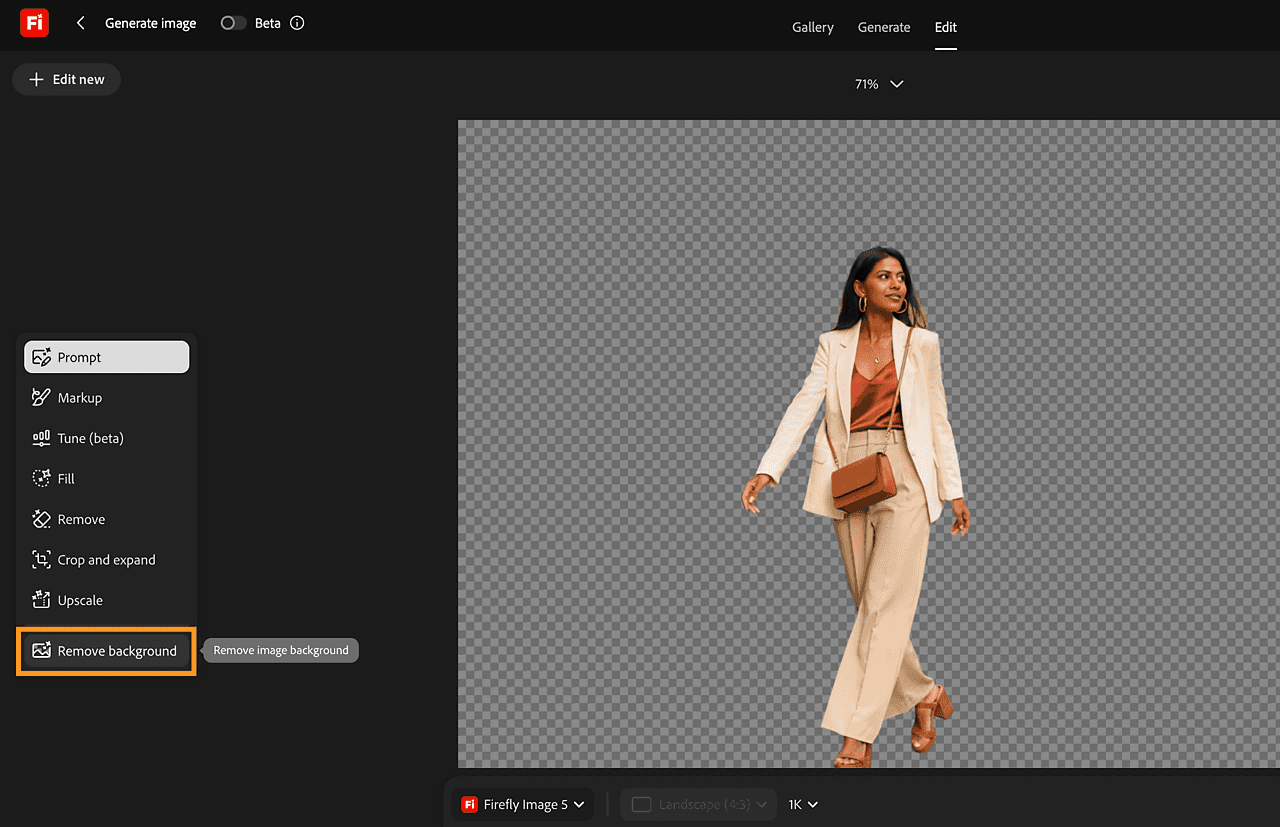
Adobe Firefly AI Background Remover is an online photo editing tool that removes the background around a person, product, pet, or other subject. Upload your photo, choose Remove background, and save the result as a transparent PNG. The cutout is ready to place on a different background or use in a design.
It is useful when you like the subject of a photo but the surroundings do not suit what you are making. A product photographed on a kitchen table can become part of a shop listing. A portrait taken outdoors can fit into a presentation, profile graphic, or video thumbnail. Removing the background gives you more control over where the subject sits and what appears behind it.
You can also keep working on the image in Firefly instead of stopping at the cutout. Add a new setting with a text prompt, make further changes, or continue the design in Adobe Express or Photoshop on the web.
Key features
- Automatic background removal: separate the main subject from the rest of the photo without tracing its outline by hand.
- Transparent downloads: save the cutout as a PNG and place it in another design.
- Common image formats: upload JPEG, PNG, and WEBP files up to 50 MB.
- More editing options: continue with Firefly's Prompt, Fill, and Upscale tools, or open the image in Photoshop on the web or Adobe Express.
How to remove a photo background
- Sign in to Adobe Firefly with your Adobe account.
- Select Image, then Edit image, and upload a photo from your device or Adobe cloud storage.
- Choose Remove background in the left sidebar.
- Download the transparent PNG, or keep editing before saving the finished image.
What can you use it for?
- Product photos: place an item on a consistent backdrop for your store or promotional graphics.
- Portraits and thumbnails: build a layout around a person, with space for a headline or other design elements.
- Social posts and presentations: reuse a cutout across different sizes and layouts without carrying the original scenery into each design.
Tips for a cleaner result
Start with a sharp photo and good lighting. A subject that stands out from its surroundings is easier to separate. Before using the cutout, zoom in and check the edges, especially around hair, fur, or reflective objects. Try placing it on both a light and a dark background to see whether anything needs a closer look.
Pricing
Adobe offers free access to the background remover with an Adobe account. Free Firefly access includes limited daily generations, while paid plans provide additional access and creative features. Check Adobe's Firefly plans for the allowances available to your account.
Frequently asked questions
Is Adobe Firefly Background Remover free?
Yes. You can get started for free with an Adobe account. Free access has daily generation limits; paid Firefly plans provide additional access.
What kind of file can I download?
Download immediately after removing the background to save a transparent PNG. It keeps the subject visible while leaving the surrounding area transparent.
Can I replace the background?
Yes. Use the Prompt tool in Firefly to describe a different setting, then adjust the image before downloading.
Can it process several photos at once?
Adobe offers a separate batch workflow through Firefly Creative Production for Enterprise. Availability depends on your account and access to that service.